الحجز عبر الإنترنت
Let customers book 24/7 from your website, Instagram, or Google.
Each ZibaDesk salon gets a dedicated public booking site at yourname.zibadesk.com (or your own domain). Customers pick a service, see real availability based on staff shifts, choose a time, and confirm with name + phone. The booking appears in your calendar instantly and sends an SMS or WhatsApp confirmation.
Online booking captures the appointments you would otherwise lose to "I'll call back later." Configure it once and it works around your shifts, technicians, and service durations automatically.
الخطوات
1. Enable services for online booking
Open Services → tap each service → toggle "Show on booking page". Add a description and photo here too — these are what your customers see when picking a service.
2. Set your shifts
Go to Settings → Shifts. Assign each technician's working hours. The booking page only offers slots when at least one qualified technician is on shift.
3. Choose your buffer and lead times
Settings → Booking. "Lead time" prevents last-minute bookings (e.g., require 2 hours notice). "Buffer" adds setup/cleanup time after each appointment. "Cancellation window" controls how late customers can cancel themselves.
4. Share the link
Your booking URL is yourname.zibadesk.com. Add it to your Instagram bio, Google Business profile, website button, and email signature. We also generate a QR code under Settings → Booking.
5. Manage incoming bookings
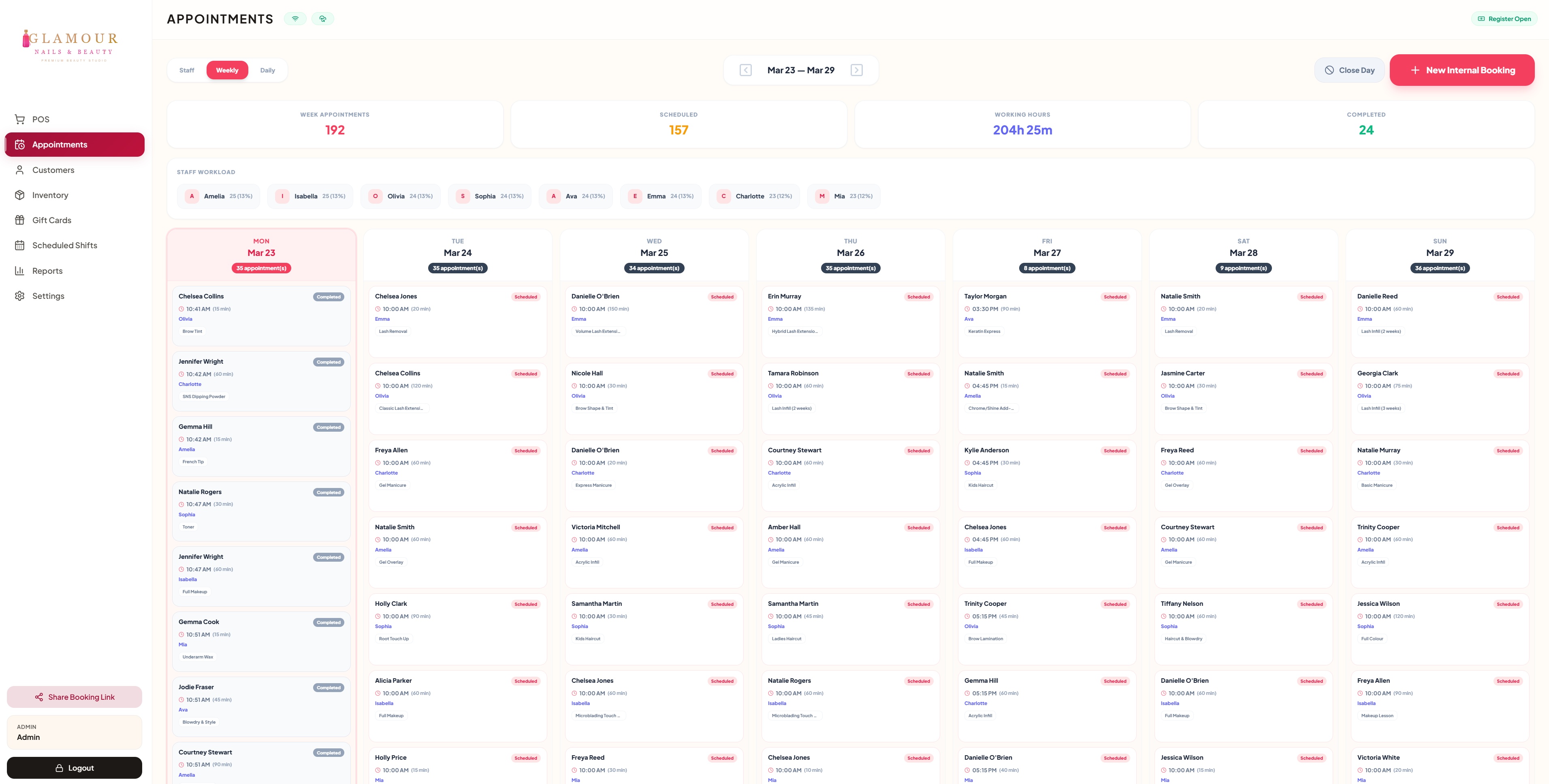
New bookings show on the calendar with a small "online" badge. You can drag to reschedule, edit, or convert to a sale via the POS. Customers automatically get reminders 24h and 2h before their appointment.
6. Ask a question on the last step
Settings → Booking rules. "Ask how clients heard about you" shows your own list of options as chips; the answer is saved on the booking and the client. A come-to-you location can add questions asked only for mobile visits (parking, a power point, a water tap, an access note), each optional or required.
7. Keep part of a day free
A weekly break lives under Settings → Business → Locations & opening hours → Breaks. For one day or one person, press Block time in Salon Center or on the Daily view. Blocked time is never offered online or at the desk and never counts as an appointment.
الأسئلة الشائعة
Can I require a deposit?
Yes. Go to Settings → Booking → Payment, connect Stripe, and set the deposit amount per service.
Can I block out lunch without closing the whole day?
Yes. Add a weekly break under Locations & opening hours → Breaks, or press Block time on the calendar for one day, one staff member or one location. Clients cannot book over it.
Do clients get a confirmation by email as well?
Yes, when "Email booking confirmation" is on under Client journey & messages. Every client with an email on their profile gets it alongside the SMS or WhatsApp message, and the Email confirmation button on an appointment sends one at any time.
What if the customer doesn't show up?
Mark the booking as no-show in the calendar. Customers with multiple no-shows can be flagged or required to deposit on their next booking.
Can customers see prices before booking?
Yes — show or hide price per service in the service settings.