Réserver avec les formulaires avant la visite
Chaque réservation envoie les bons consentements et le questionnaire avant l'arrivée du client.
When you book an appointment in clinic mode, ZibaDesk works out which consent forms the treatment needs and whether the client should complete the health questionnaire. The confirmation carries a secure link where the client does everything on their phone, and you can see at a glance what is done and what is still waiting.
This builds on the consent form and questionnaire settings. Set those up first, then every new booking picks the right forms by itself.
Étapes
Start the booking
Tap Book Now on a client record, or New Appointment in the bookings area and choose the client. Pick a practitioner, or leave Any practitioner, choose the services, and tap Next.
Pick the time, room and device
Choose a date and one of the available times, or use Enter time manually. If you use treatment rooms and devices, choose them here, and the window warns you when the room or device is already booked at that time.
Choose what to send before the visit
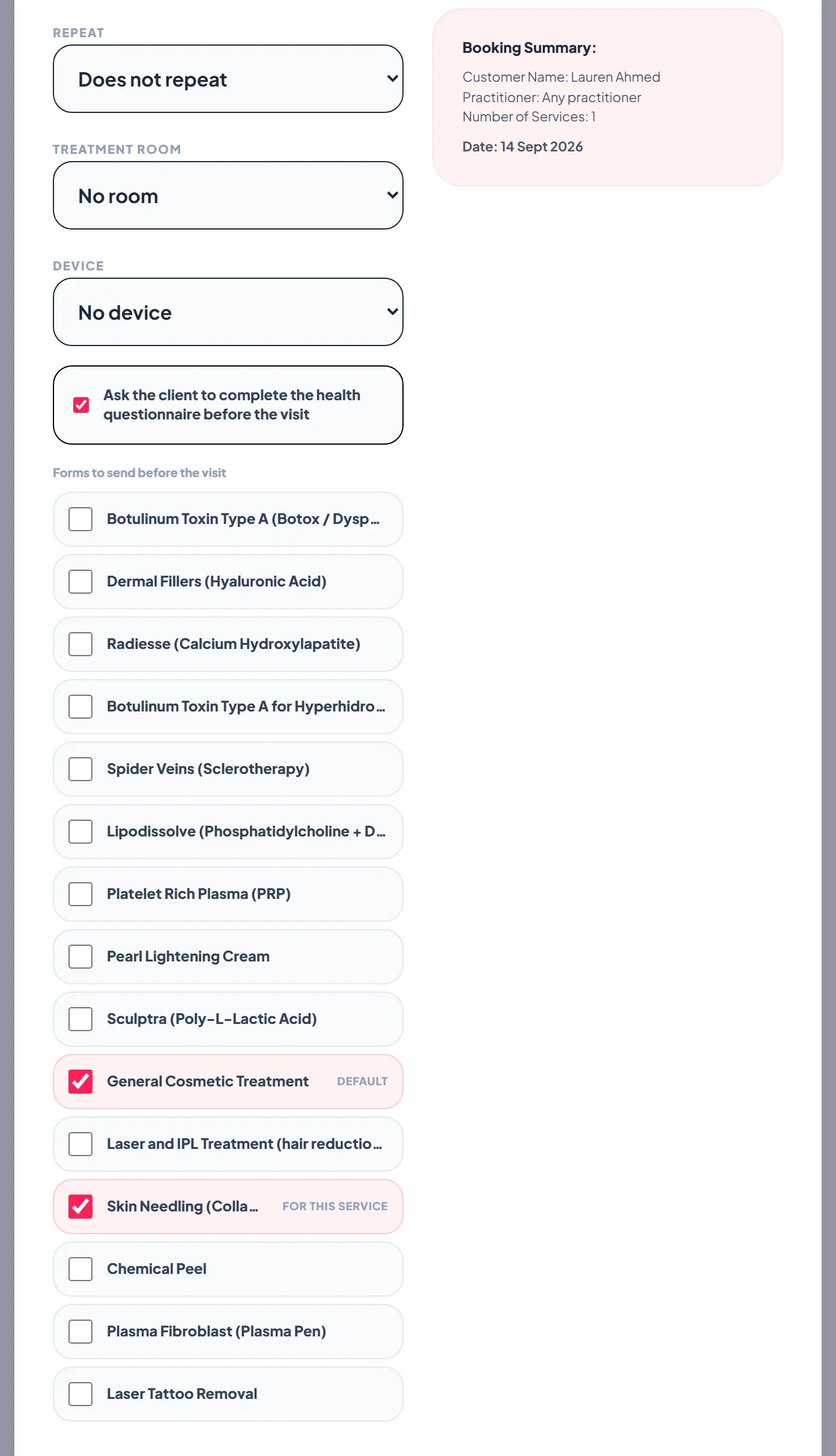
Ask the client to complete the health questionnaire before the visit is ticked by default. Under Forms to send before the visit, your default form is ticked and tagged Default, and the forms the chosen services require are ticked and tagged For this service. Tick any other form the client should sign, or untick one they do not need, then tap Confirm Booking.
Make the forms hard to miss
In Settings > Aesthetic Clinic > Consent forms, the Before the visit block has two switches. Take clients straight to their forms sends anyone who books online to their booking page with the questionnaire and every consent form waiting, instead of a plain confirmation screen. Chase unsigned forms automatically sends one reminder with the secure link a set number of hours before the visit, by SMS, WhatsApp or email, for whatever is still outstanding.
What goes out to the client
The confirmation goes by SMS or WhatsApp, following your Messaging settings, and by email when email confirmations are on and the client has an email address. It includes the secure link to their booking. When WhatsApp carries the confirmation, a second WhatsApp message follows with the forms link, or an SMS if WhatsApp cannot deliver it.
What the client sees
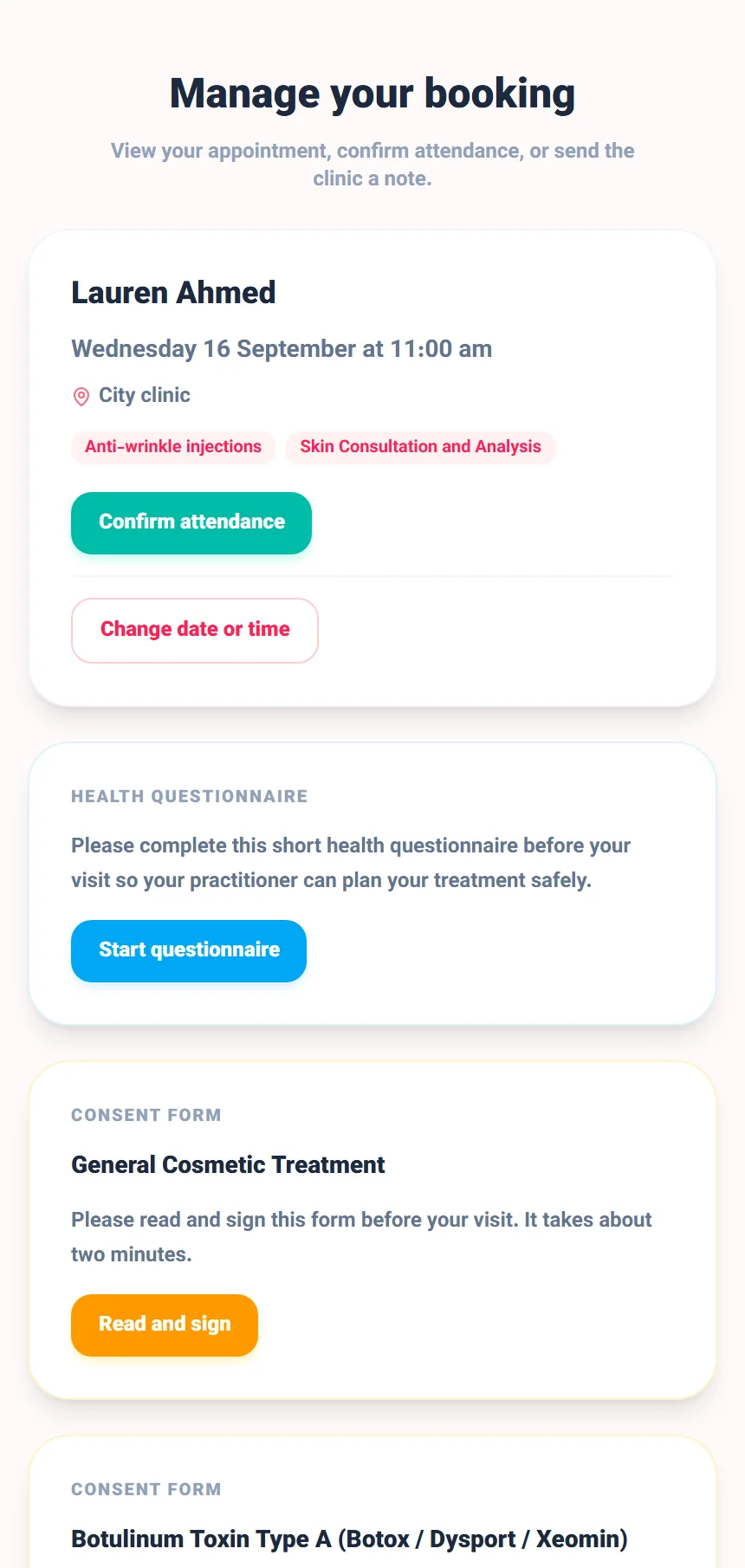
The link opens their booking page. They can confirm attendance, change the date or time if your policy allows it, complete the questionnaire, read and sign each consent form, and send the clinic a message.
Track what is done
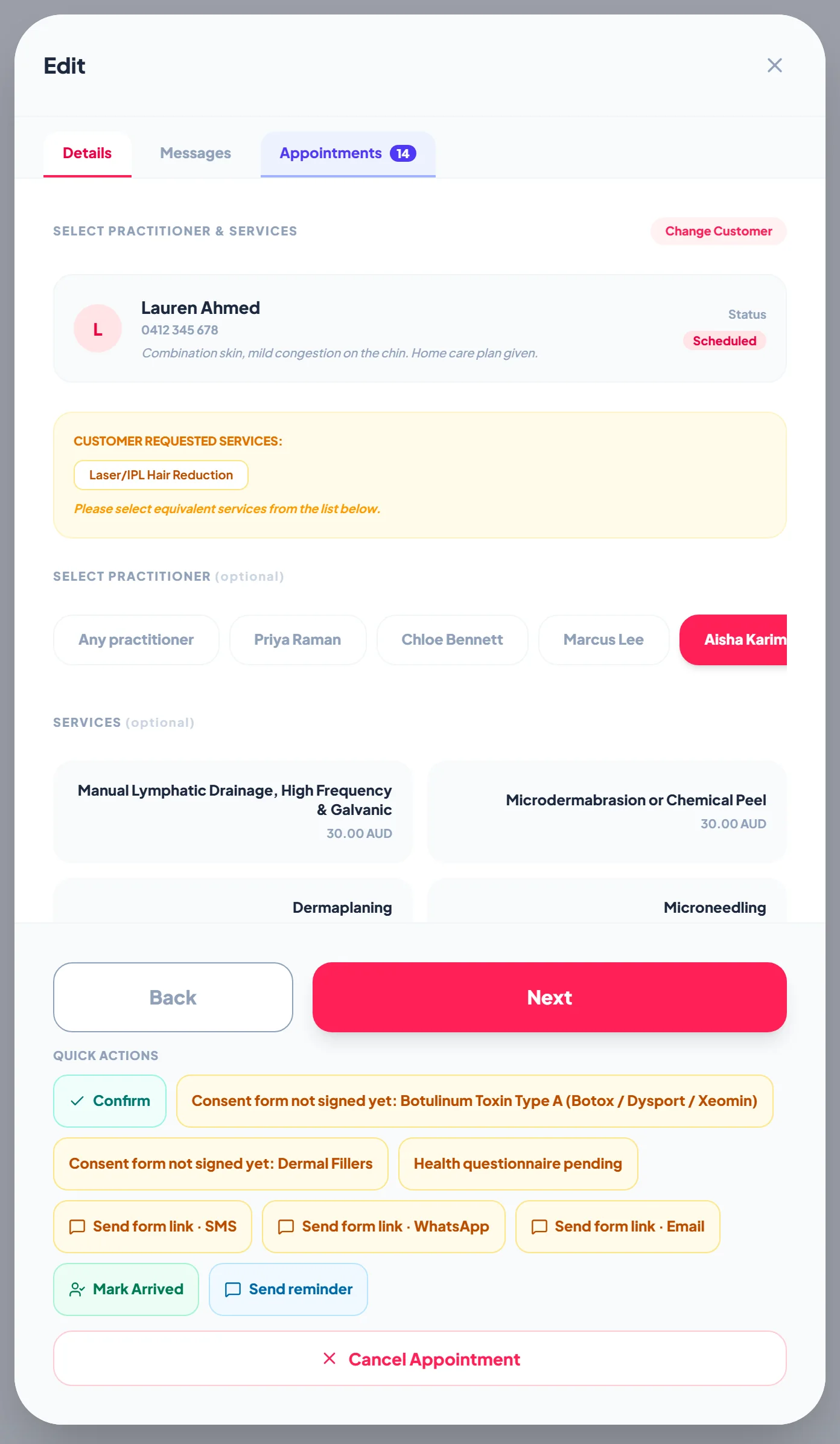
Open the booking to see what is outstanding. The quick actions show each unsigned form and a pending questionnaire, and Send form link by SMS, WhatsApp or Email sends the link again. The client record shows the same forms under Forms and documents.
FAQ
Do online bookings get forms too?
Yes. When Attach to online bookings is on, an online booking requests the forms its services require, or the default form for a service with none, and new clients get the questionnaire.
What if the client has no mobile number?
The confirmation and link go by email when the client has an email address and email confirmations are on.
Can I send the link again later?
Yes. Open the booking and use Send form link by SMS, WhatsApp or Email, or let the automatic follow-up chase it for you.
Can we make the forms compulsory?
You can make them unavoidable: switch on Take clients straight to their forms so every online booking ends on the forms, and Chase unsigned forms automatically so anything still unsigned is followed up before the visit. The appointment itself is still created, so nobody loses their slot because a form was not finished.