Clinic Center, 시술실과 장비
한 화면에서 하루를 운영하고 시술실이나 장비의 중복 예약을 막으세요.
The Clinic Center shows today's practitioners, who has arrived, who is in treatment and who is waiting. Treatment rooms and devices let you assign each appointment to a room and a machine, cap online bookings at the number of rooms you have, and warn staff when a device is already in use.
The Clinic Center is the first view in the bookings area in clinic mode. Rooms and devices need the Treatment rooms and devices feature switched on.
Step-by-step
Read the day at a glance
The top cards count practitioners ready and busy, visits, appointments, walk-ins and completed treatments. Below, Practitioners shows who is free, In Service shows treatments in progress with the time elapsed, and Waiting lists the next appointments and walk-ins. A teal badge marks clients who confirmed by replying to their reminder.
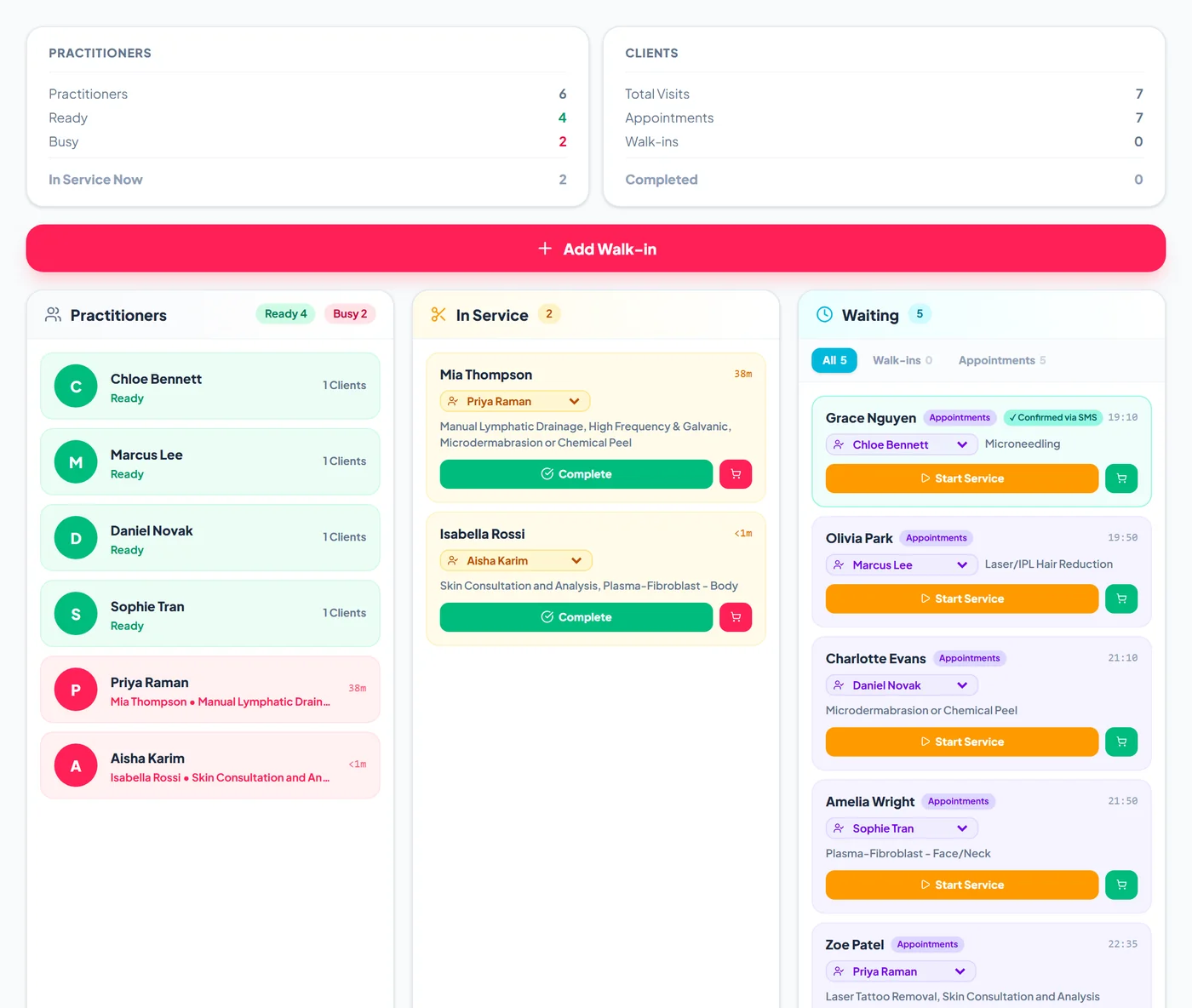
Start and complete treatments
Tap Start Service on a waiting card when the client goes in. Change the practitioner from the picker on the card if needed. When the treatment ends, tap Complete to open the POS with the client and appointment ready for payment. Tap anywhere else on a card to open the booking.
Add walk-ins
Tap Add Walk-in, search for an existing client or type a new name, choose the service and a preferred practitioner, and the walk-in joins the waiting list.
Set up rooms and devices
Go to Settings > Rooms & Devices and use Add room and Add device to list your treatment rooms and machines, such as a laser or a microneedling pen. With rooms set up, online bookings stop offering a time once every room is taken.
Assign them to appointments
In the booking window choose the Treatment room and the Device. If the room or device is already booked at an overlapping time, a warning appears before you confirm. The Rooms and Devices views in the bookings area show each room or machine's day.