POS 销售点
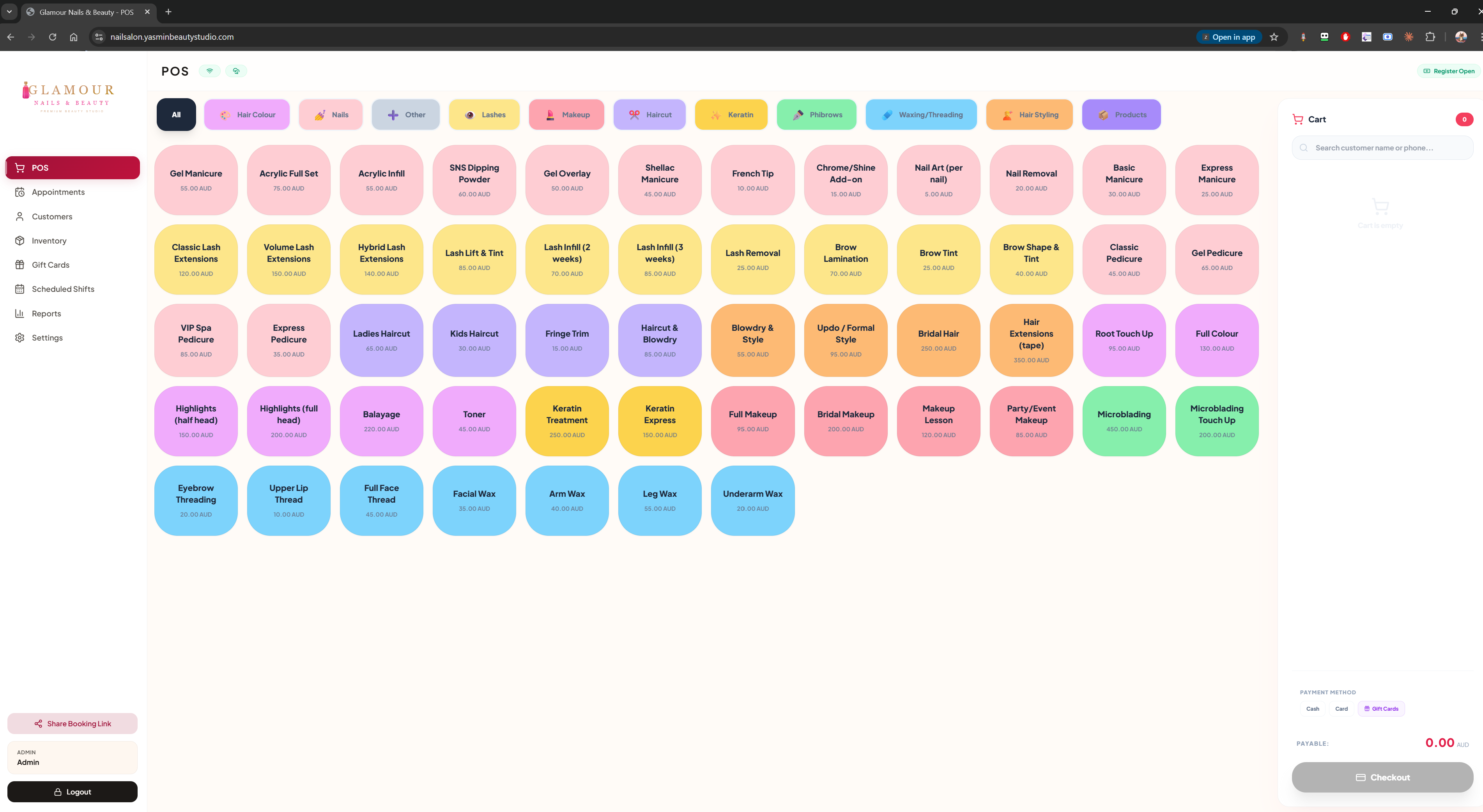
Ring up appointments, walk-ins, and product sales in seconds.
The ZibaDesk POS lets you ring up sales for booked appointments, walk-in customers, and retail products. It handles tips, discounts, gift cards, loyalty points, multi-payment methods, and prints or emails receipts — all linked to the customer record automatically.
Whether you take walk-ins or work strictly by appointment, you'll spend more time with the POS than any other screen. This guide walks through the four most common workflows.
Step-by-step
1. Open the POS from any screen
Tap the cart icon in the top toolbar. You can open it on top of the calendar, customer list, or any settings screen — everything you do is tied to the customer you select.
2. Select a customer (or skip for walk-ins)
Search by name or phone, or tap "Walk-in" for a one-off sale. Selected customers automatically apply their loyalty tier and any saved gift-card balance.
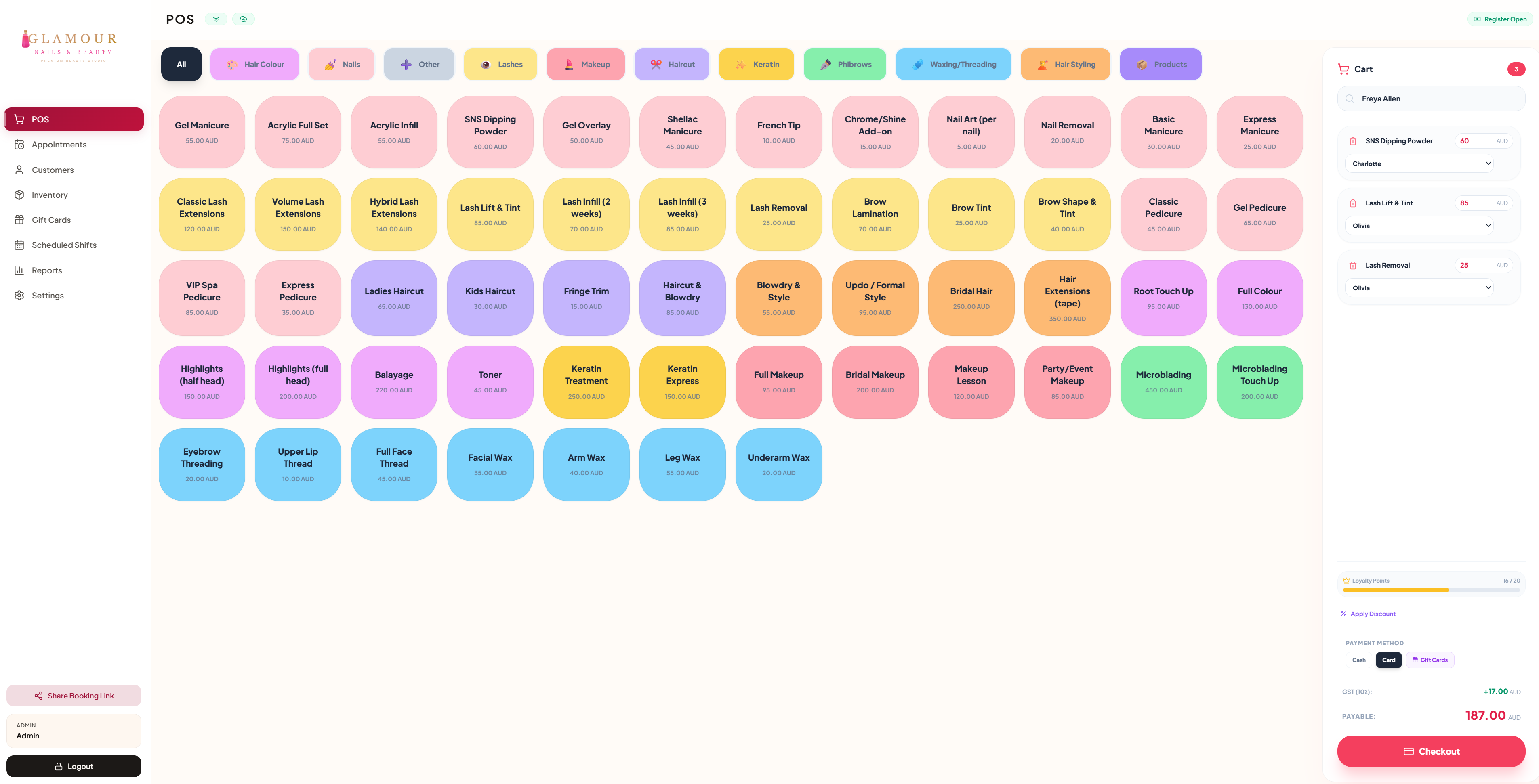
3. Add services and products
Services come from your service catalogue and inherit the technician you assigned. Products are scanned or selected from the product grid. Tap any line to apply a discount or change the assigned technician.
4. Take payment
Split across cash, card, gift card, and loyalty redemption in one step. Tip is added at the end. Receipts are printed, emailed, or texted automatically — and the sale appears in the customer's history immediately.
Tip: link sales to bookings
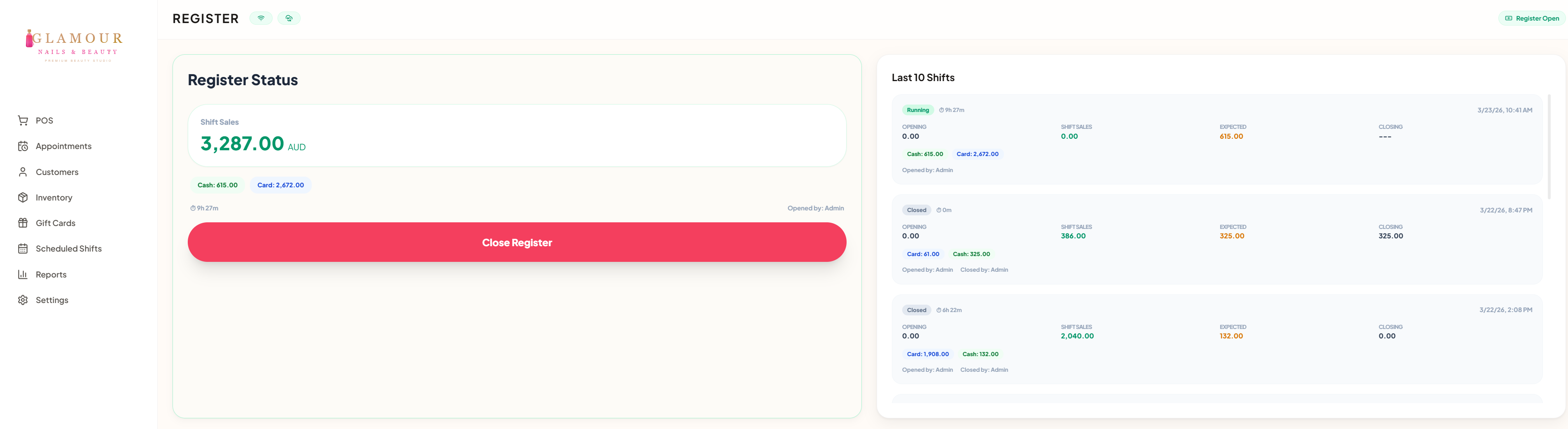
If the customer has an upcoming or in-progress booking, the POS pre-loads its services. Closing the sale automatically marks the booking as completed.
Frequently asked
Can I round cash sales to the nearest 50 cents?
Yes. Settings → Sales & payments → Payments: set a rounding step next to the cash method. The rounding is its own line on the receipt. The till helper on the same page shows what the client hands over and the change due.
Can I refund a sale?
Yes — open the original sale from the customer's history and tap Refund. You can refund the full amount, partial amount, or specific line items.
Does it work offline?
Yes. Sales taken offline sync to the cloud the moment your device is back online.
Can two staff members use the POS at once?
Yes — each device runs its own POS session. All data syncs across devices in real time.