Kundenverwaltung (CRM)
Every customer's full history, preferences, and notes — one tap away.
Build a customer record automatically every time someone books or buys. Track visits, lifetime spend, allergies, formula notes (great for hair colour), photos, no-show count, and loyalty points. Search by name or phone; see who's due for a visit; export segments for marketing.
A complete CRM is what separates a salon from a chair-rental. Every booking, sale, and SMS conversation links back to the customer profile.
Schritte
1. Find or add a customer
Tap Customers in the sidebar. Search by name or phone. New customers are auto-created when they book online or check out at the POS, but you can also add them manually with one tap.
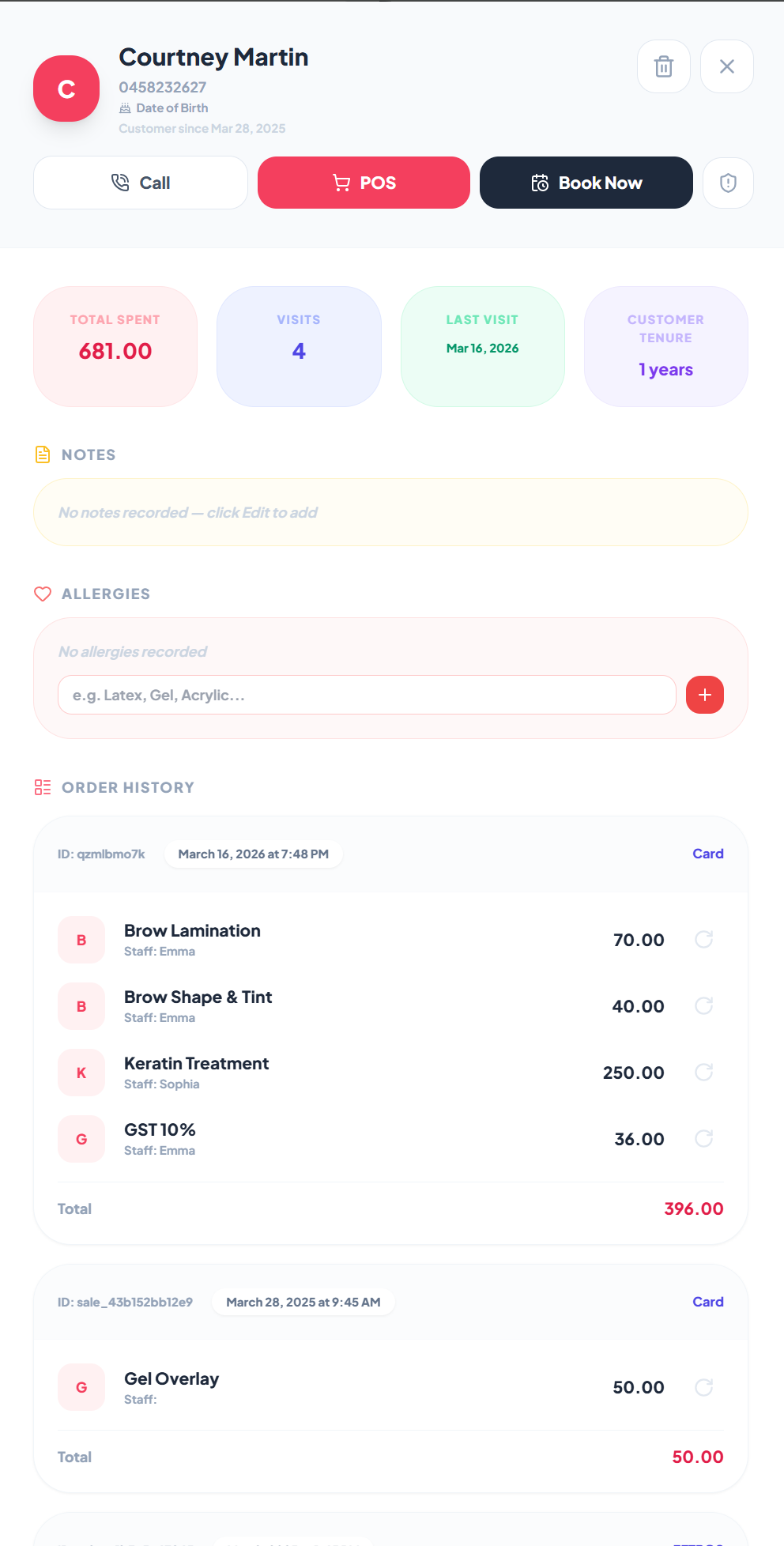
2. Add notes and preferences
Open a customer → Notes tab. Capture allergies, preferred technician, parking instructions, anything that affects how you'd treat them next time. These show up at booking and POS.
3. Treatment plans and consent photos
For aesthetics or hair colour clients, log a treatment plan (services + intervals) and attach before/after photos. Photos are stored privately and only visible to staff.
4. Segment and export
Filter by last-visit date, lifetime spend, loyalty tier, or service history. Export a CSV for an email blast, or just send an SMS campaign right from the segment.
5. Edit details in place
On the profile, tap the name, phone number, email line or birth date, type, and press Enter. The email line reads "No email address" until one is added; adding one to a client with upcoming appointments emails their confirmations straight away.
6. See how reliable a client is
The Appointments tab counts completed, cancelled and no-show appointments over the client's whole history, above the list of past visits.
Häufige Fragen
A client was created with just a phone number. Can I add their email later?
Yes. Open the client in Customers and tap the email line under the phone number, type the address and press Enter. If they already have an appointment booked, its confirmation is emailed straight away.
Can I see who keeps cancelling or not showing up?
Yes. The Appointments tab on the client's profile shows completed, cancelled and no-show counts over their whole history.