Behandlungskarten und Dosisprotokoll
Jede Gabe dokumentieren, freigeben und die heutigen Dosen an der Kasse abrechnen.
Treatment charts record what was given, how much, by which route and when, against the standing dose ranges your clinic sets. You define chart types in Settings, each client gets one chart per type, and every logged dose can be charged at its unit price.
Charts are part of the Patient records and treatment charts feature. A default Cosmetic Enhancement chart type is ready to use, and you can add your own, such as a laser or skin chart.
Schritte
Set up your chart types
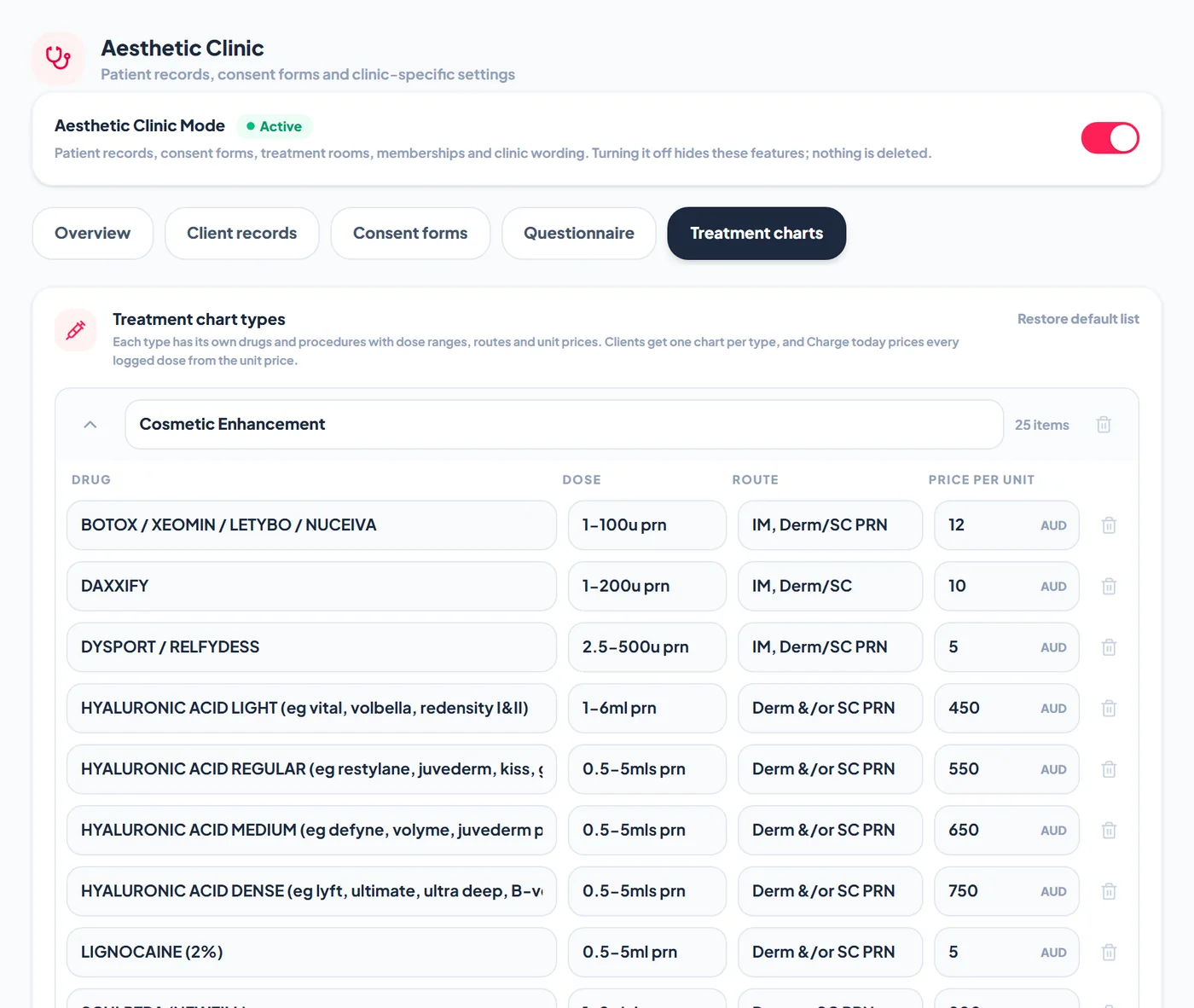
Go to Settings > Aesthetic Clinic > Treatment charts. Each chart type lists its drugs or procedures with the standing dose range, the route and a price per unit. Tap Add drug to add a row and Add treatment type for a new chart type. Restore default list brings back the original entries. Renaming an item applies to new charts, and existing charts keep their rows.
Open a client's chart
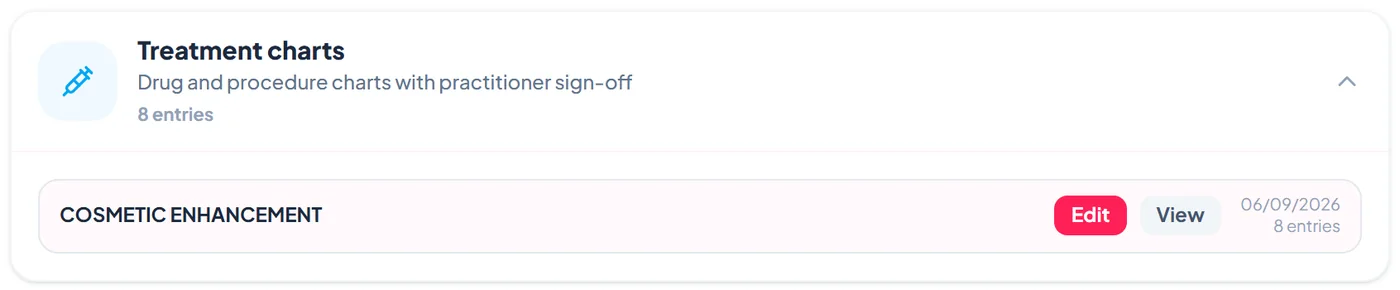
On the client's Clinical tab, Treatment charts shows one chart per chart type with the date of the last entry. Tap View to read it or Edit to log doses.
Log a dose
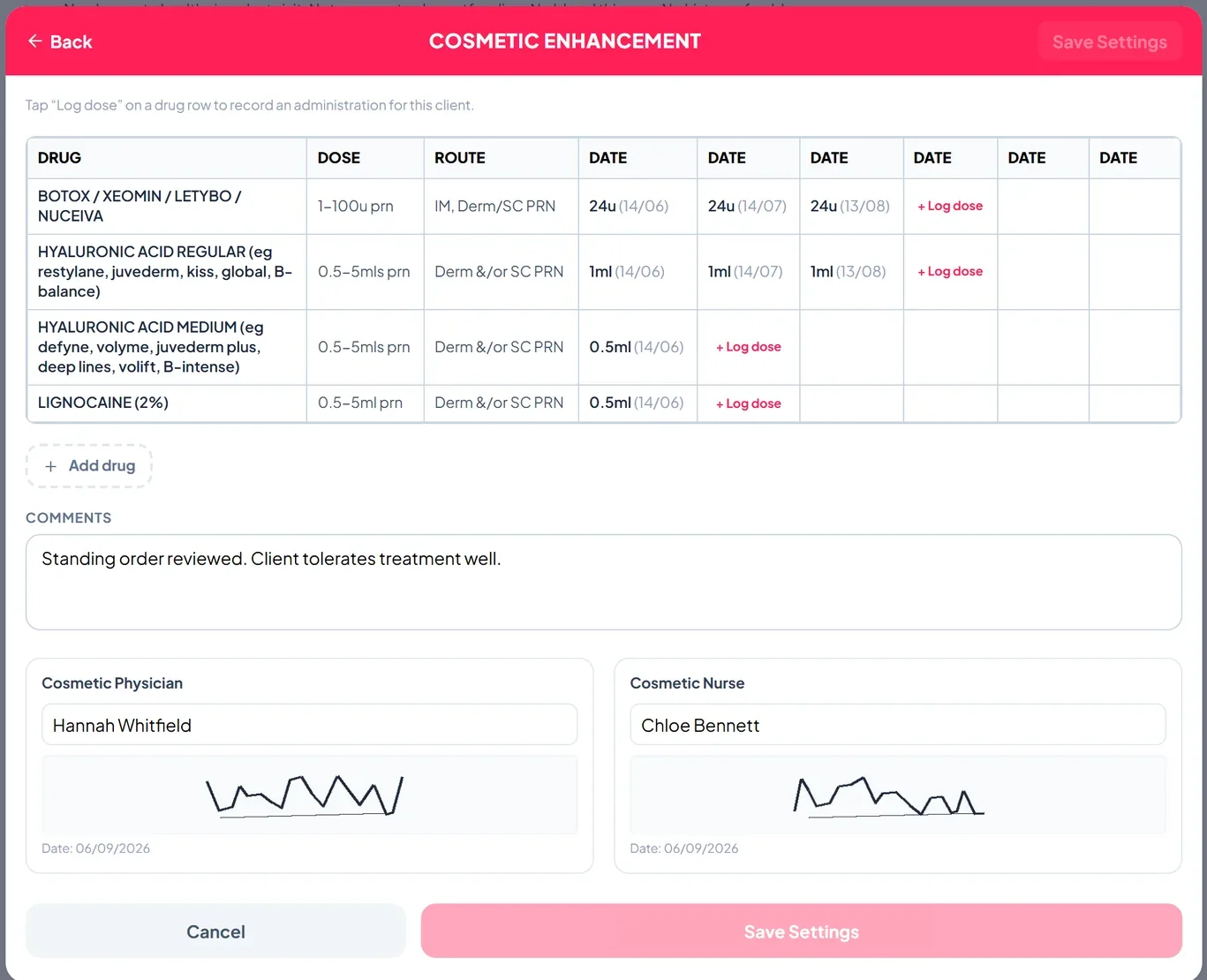
Tap Log dose on the drug row, enter the dose, date and any note, and save. Each administration appears in the next date column, so the chart reads like a paper drug chart. Add drug adds a row for something not on the list.
Sign the chart off
Add comments, then the prescribing physician and the nurse enter their names and sign in the boxes at the bottom. The chart shows the date each signature was added.
Charge today's treatment
Tap Charge today's treatment at POS on the client record. Today's logged doses go into the POS cart at their unit prices, alongside anything else the client buys, ready to take payment.
Link doses to a treatment plan session
When you log a session on a treatment plan, Log doses on the chart opens the client's chart with the plan and session named at the top. Doses logged there are linked to that session.
Häufige Fragen
Can we have more than one chart per client?
Yes, one chart per chart type, for example a Cosmetic Enhancement chart and a laser chart.
What if an item has no price?
Leave the price per unit empty and the dose is recorded but not charged.