Aesthetic clinic mode: overview and setup
Switch on clinic mode and work through the quick setup checklist.
Aesthetic clinic mode adds the clinical side of ZibaDesk: client records with medical history, a health questionnaire, consent forms with e-signatures, treatment charts, treatment plans, before-and-after photos, AI-drafted session notes, treatment rooms and devices, and memberships. It also switches the wording across the app to clinic language, so staff become practitioners and the Salon Center becomes the Clinic Center.
Clinic mode is part of the Ultra plan and is switched on by an Admin. Turning it off later hides the clinical features but deletes nothing, so you can switch it back on at any time and find every record where you left it.
Step-by-step
Switch on clinic mode
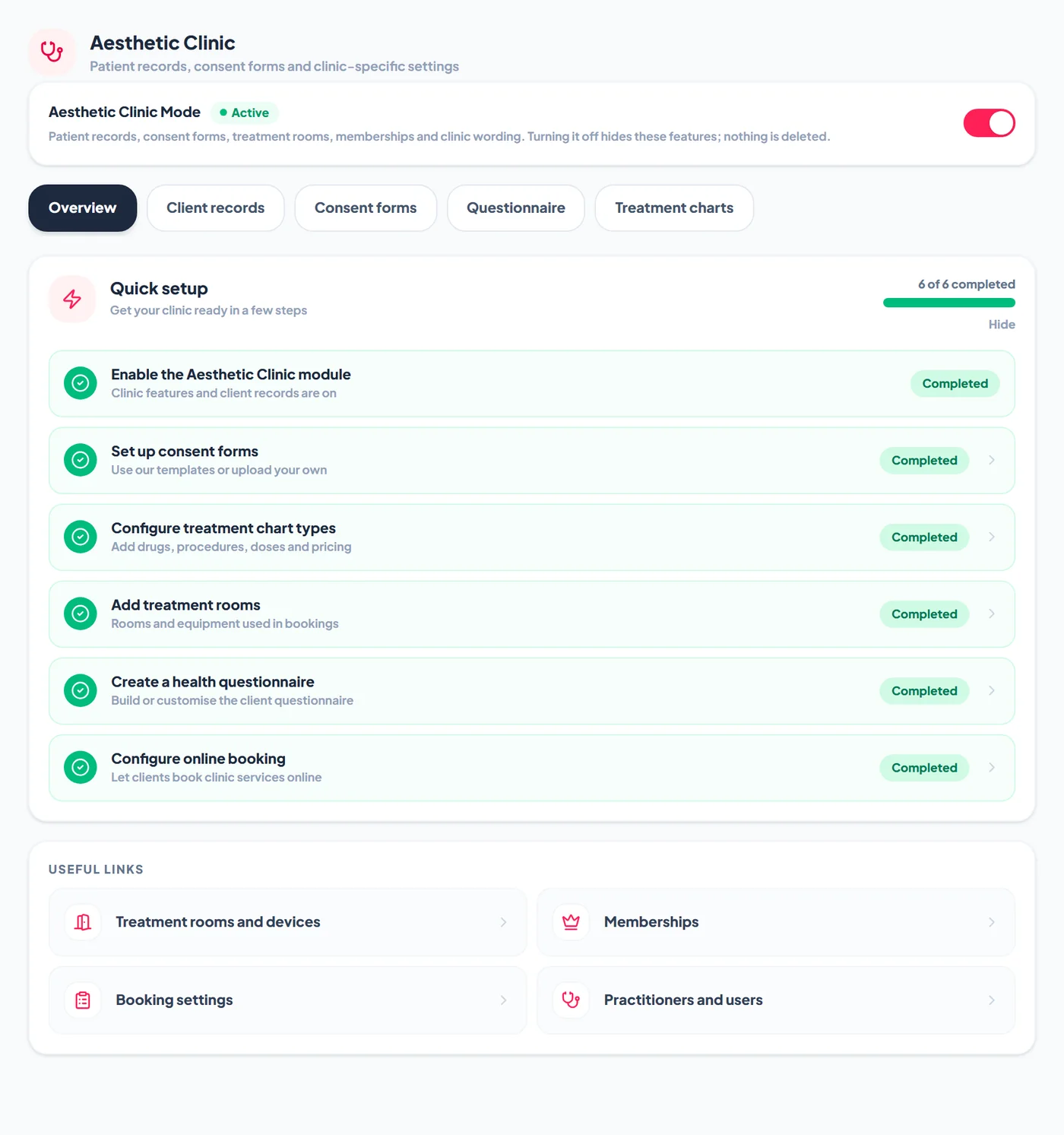
Go to Settings > Aesthetic Clinic and turn on Aesthetic Clinic Mode. The status changes to Active and the Overview tab opens with a Quick setup checklist. Only Admin logins can see this page.
Work through Quick setup
The checklist has six steps: enable the module, set up consent forms, configure treatment chart types, add treatment rooms, create a health questionnaire and configure online booking. Tap any step to jump straight to the right screen. Each step turns green when it is done, and you can hide the checklist once everything is complete. The Useful links below it open rooms and devices, memberships, booking settings, and practitioners and users.
Choose the clinic features you use
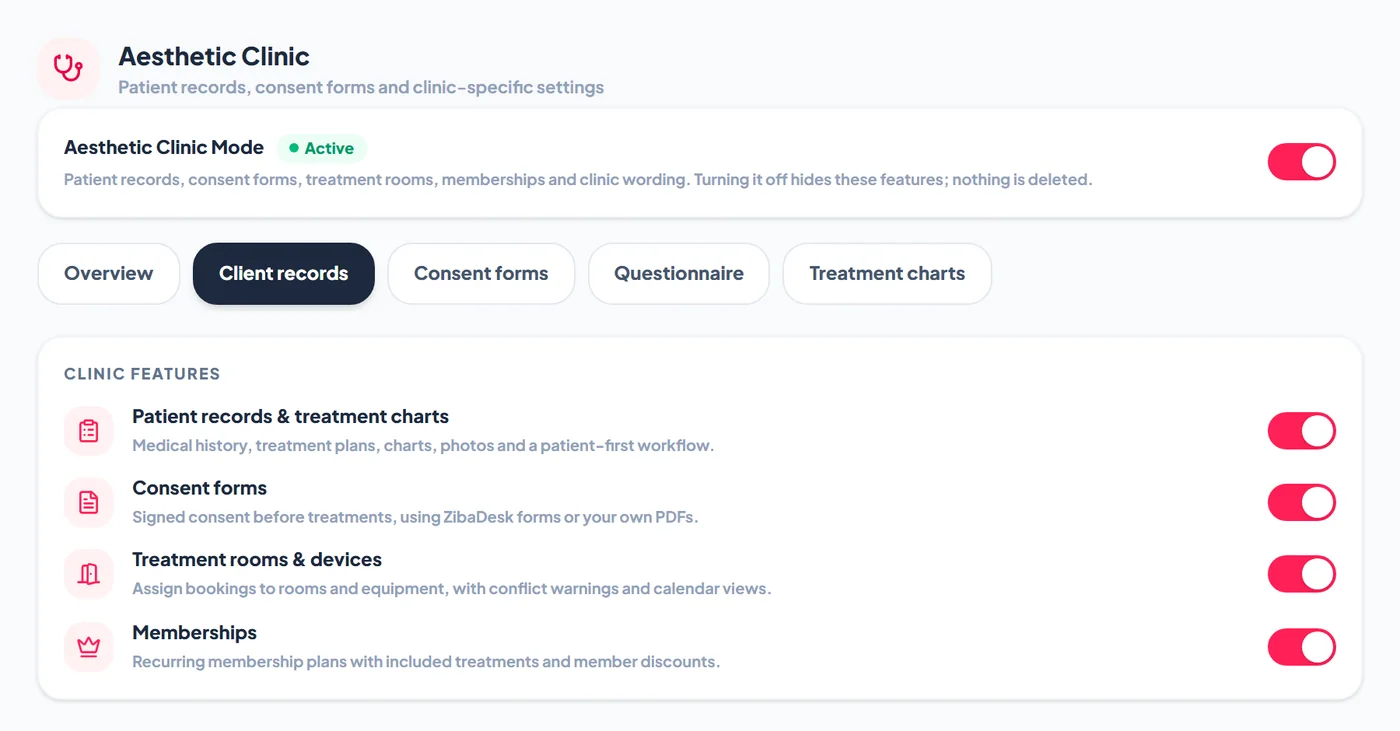
Open the Client records tab and switch each feature on or off: patient records and treatment charts, consent forms, treatment rooms and devices, and memberships. A feature you switch off disappears from menus and client records, and its data stays safe until you switch it back on.
Add practitioners and give the right logins
Add everyone who treats clients under Settings > Practitioners, with the services they perform and their working hours, then create logins under Settings > Users. The Clinical tab of a client record, signed consent forms and supervisor sign-off are available to Admin and Manager logins only. Give practitioners who chart treatments a Manager login, and keep front-desk staff on a Cashier login so they see bookings and payments but not clinical notes.
Know what changes on screen
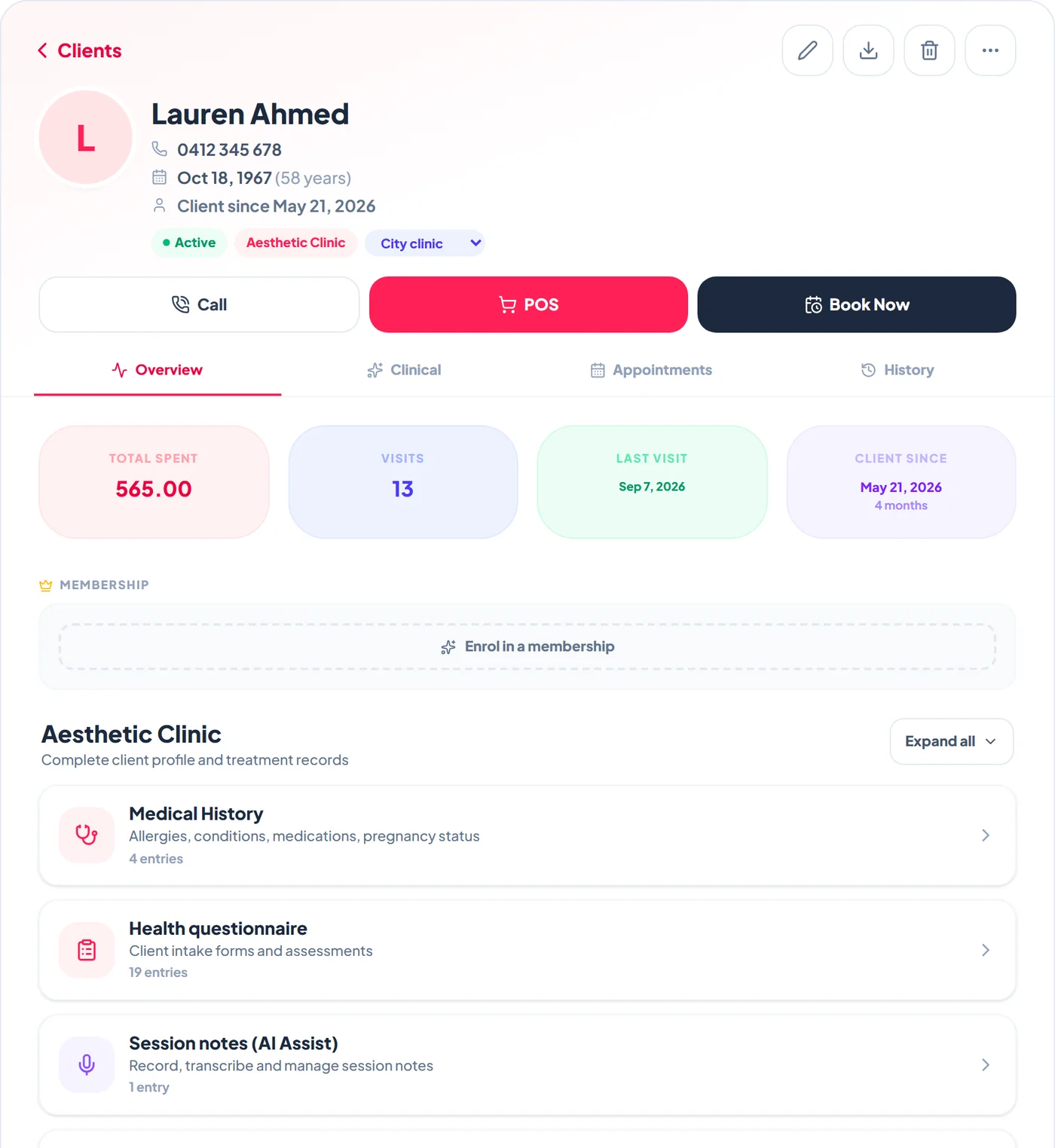
In clinic mode the bookings area opens on the Clinic Center, the booking window offers treatment rooms, devices, pre-visit forms and the health questionnaire, and every client record gains a Clinical tab. The Overview tab of a record also lists the Aesthetic Clinic panels: medical history, health questionnaire, session notes, treatment charts, treatment plans, forms and documents, and photos.
Frequently asked
Which plan includes clinic mode?
The aesthetic clinic suite is part of the Ultra plan. AI Assist session notes are included in Ultra at no extra cost, within a fair-use monthly allowance, and free to try during a trial.
Can we use only some of the clinic features?
Yes. Each feature has its own switch on the Client records tab, so a clinic can use consent forms and charts without memberships, for example.
What happens to our records if we turn clinic mode off?
Nothing is deleted. The clinical screens are hidden until you turn clinic mode back on.
Does clinic mode work across several locations?
Yes. Each location keeps its own practitioners, hours and clients, and clients choose a location when they book online.